
WSL
The Windows Subsystem for Linux (WSL) runs a real Linux kernel in a lightweight virtual machine, so you can use Linux tools, shells and package managers without dual-booting. Everything after this step (zsh, Git, Node.js, pnpm and your projects) lives inside this Linux distribution.
This guide uses Ubuntu, the default. You can install other distributions side by side at any time.
Install
Run the installer
Open Terminal (Admin) (see Package Managers) and run:
wsl --install
This enables the required Windows features, installs the latest WSL and Linux kernel, sets WSL 2 as the default version and installs Ubuntu.
Restart Windows
Reboot when prompted. After signing back in, Ubuntu finishes installing in a terminal window.
Create your Linux user
Enter a username and password when asked. Nothing is shown while you type the password; that's expected.
- This account is separate from your Windows account and belongs to this distribution only.
- It's the default user and can run administrative commands with
sudo. - You'll create a new one whenever you install, reinstall or reset a distribution.
Update Ubuntu
Windows doesn't update the packages inside your distribution, so do it now and then:
sudo apt update && sudo apt upgrade -y
wsl --install without arguments may only print help. Install a specific distribution instead:# See which distributions are available
wsl --list --online
# Install one by name
wsl --install -d Ubuntu-24.04
Useful commands
Run these from PowerShell:
# Update WSL itself (installed from the Microsoft Store)
wsl --update

# Show the WSL version and kernel version
wsl --version

# List installed distributions and their WSL version
wsl --list --verbose

# Choose which distribution `wsl` opens by default
wsl --set-default Ubuntu

# Stop all distributions and the WSL virtual machine
wsl --shutdown
See the WSL command reference for the rest.
Configure WSL
WSL has two configuration files. Changes take effect after you run wsl --shutdown and open a new WSL tab.
Global settings: .wslconfig
%UserProfile%\.wslconfig (for example C:\Users\you\.wslconfig) configures the virtual machine shared by all distributions. It doesn't exist by default, so create it with any text editor, for example notepad $env:USERPROFILE\.wslconfig from PowerShell.
[wsl2]
# Cap the RAM WSL can use (default: 50% of Windows memory)
memory=8GB

# Share Windows' network interfaces: localhost works both ways,
# and IPv6 and VPNs behave like they do on Windows
networkingMode=mirrored
networkingMode out; the default NAT mode still forwards localhost ports from WSL to Windows, so dev servers open in your Windows browser either way.Pick a memory value that leaves enough RAM for Windows, your browser and your editor. All available keys are listed in the WSL settings reference. The WSL Settings app, installed with WSL, edits the same file through a UI.
Per-distribution settings: /etc/wsl.conf
/etc/wsl.conf lives inside the distribution. Make sure systemd is enabled so services such as Docker, snap and systemctl work like they do on a regular Linux machine. The Ubuntu image installed by wsl --install already enables it; other distributions may not. Check with cat /etc/wsl.conf, and if the setting is missing, add it:
sudo nano /etc/wsl.conf
[boot]
systemd=true
After restarting WSL, confirm systemd is running:
systemctl list-unit-files --type=service
Files and performance
Keep your projects in the Linux file system, for example ~/code, not under /mnt/c.
/mnt/c (your Windows drives), and file watchers used by Vite and Nuxt may miss changes there. Clone repositories inside your Linux home directory.mkdir -p ~/code
cd ~/code
You can still reach files in both directions:
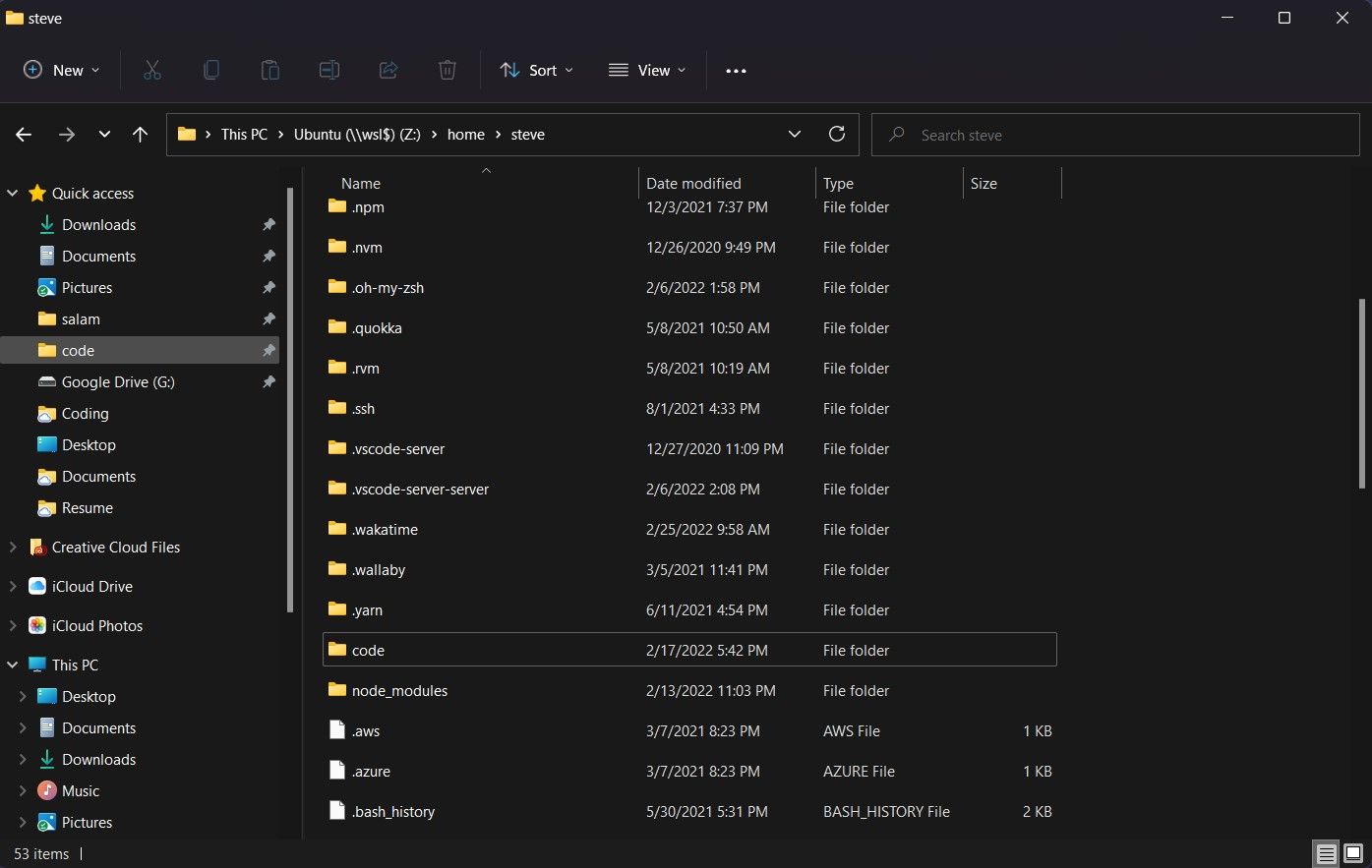
- From Windows, File Explorer shows a Linux entry in the navigation pane with every distribution. You can also type
\\wsl.localhost\Ubuntu\home\<your-user>in the address bar. Right-click yourcodefolder and select Pin to Quick access for one-click access. - From WSL, run
explorer.exe .to open the current Linux directory in File Explorer. Your Windows drives are mounted under/mnt, so your Windows user folder is/mnt/c/Users/<you>.
Set Windows Terminal to open Ubuntu
Now that Ubuntu exists, go back to Windows Terminal and make it the default profile with ~ as the starting directory.
If WSL ever stops responding, see Troubleshooting.