
Package Managers
Installing apps from the command line is faster than clicking through installers, and it makes a new machine reproducible. Windows has two popular options:
- WinGet is Microsoft's package manager. It's preinstalled on Windows 11 and modern Windows 10 as part of App Installer, so start here.
- Chocolatey is a community package manager with a larger catalog. It's optional; install it only if WinGet doesn't have something you need.
Open an administrator shell
Some installers need administrator rights. Pick whichever method suits you.
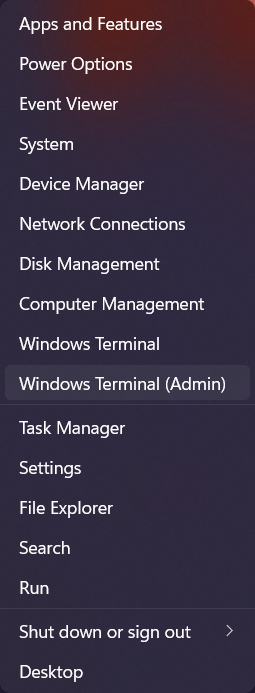
Press Win + X (or right-click the Start button) and select Terminal (Admin). Accept the User Account Control prompt; the tab title starts with Administrator:.
On Windows 11 version 24H2 and later you can elevate a single command from a normal PowerShell tab with Sudo for Windows.
Enable it once in Settings › System › Advanced › Enable sudo, then prefix any command:
sudo winget install --id Git.Git -e
The default In a new window mode is the safest; the inline modes let other processes in the same console drive the elevated one.
In Windows Terminal, open Settings › Profiles › Windows PowerShell and turn on Run this profile as Administrator. That profile then always opens elevated, so keep your everyday profile (Ubuntu) unelevated.
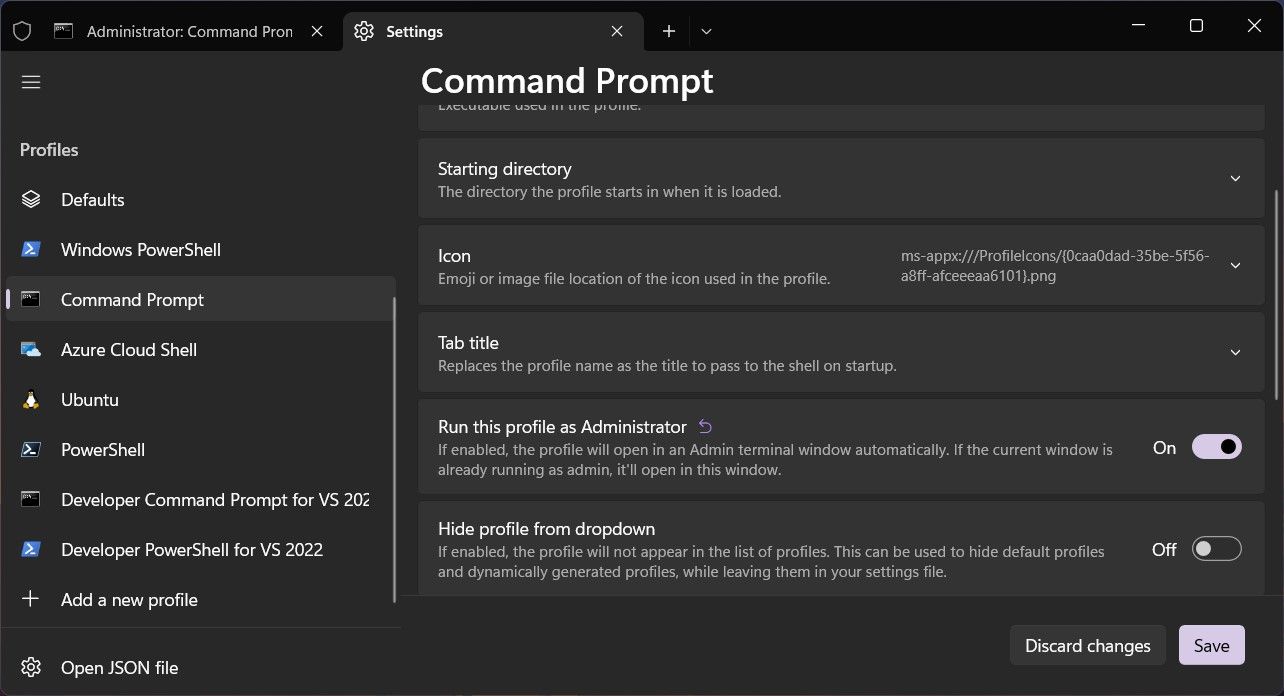
pnpm or npm as administrator.WinGet
Check that WinGet is available:
winget --version
If the command isn't recognized, update App Installer from the Microsoft Store.
The commands you'll use most:
# Find a package and its ID
winget search vscode

# Install by exact ID
winget install --id Microsoft.VisualStudioCode -e

# List installed apps and available updates
winget list
winget upgrade

# Update everything
winget upgrade --all

# Remove an app
winget uninstall --id Microsoft.VisualStudioCode -e
--id with -e (--exact) avoids installing a similarly named package by accident. Browse IDs on winget.run or with winget search.
Chocolatey (optional)
Open an administrator PowerShell
Use one of the methods above. Chocolatey's default install and most of its commands need an elevated shell.
Check the execution policy
Get-ExecutionPolicy
If it returns Restricted, allow scripts for this session only:
Set-ExecutionPolicy Bypass -Scope Process
Run the installer
Review install.ps1 first if you like, then run:
Set-ExecutionPolicy Bypass -Scope Process -Force; [System.Net.ServicePointManager]::SecurityProtocol = [System.Net.ServicePointManager]::SecurityProtocol -bor 3072; iex ((New-Object System.Net.WebClient).DownloadString('https://community.chocolatey.org/install.ps1'))
Verify
Open a new admin tab and run choco -?. See Getting Started for more.
Basic commands, all run from an administrator shell:
choco install <package> -y
choco upgrade <package>
choco upgrade all -y
choco list
choco uninstall <package>
Search the Community Package Repository for package names.
Recommended apps
A few free apps that are useful for web development on Windows:
- Microsoft PowerToys is a set of power-user utilities, including the Command Palette launcher (Win + Alt + Space), FancyZones window layouts and a color picker. PowerToys Run is still included if you prefer the older launcher.
- Git for Windows provides Git Credential Manager, which the Git step uses from WSL.
- GitHub Desktop is a graphical Git client.
- RunJS is a JavaScript and TypeScript scratchpad.
- Bruno and Postman are API clients.
- Figma is a collaborative UI design tool.
- draw.io is a diagramming app.
- Obsidian and Notion are note-taking apps.
Install them in one go:
winget install -e --id Microsoft.PowerToys
winget install -e --id Git.Git
winget install -e --id GitHub.GitHubDesktop
winget install -e --id lukehaas.RunJS
winget install -e --id Bruno.Bruno
winget install -e --id Postman.Postman
winget install -e --id Figma.Figma
winget install -e --id JGraph.Draw
winget install -e --id Obsidian.Obsidian
winget install -e --id Notion.Notion
choco install powertoys git github-desktop runjs postman figma drawio obsidian notion -y