
VS Code
VS Code's UI stays on Windows. The WSL extension runs a small server inside Ubuntu so the integrated terminal, language tools and file watchers use your Linux Git, Node and pnpm.
Install VS Code
From PowerShell (administrator not required):
winget install --id Microsoft.VisualStudioCode -e
Or download the stable installer. Use Stable, not Insiders, unless you already know you want the daily build (code-insiders).
WSL extension
In VS Code, install WSL (ms-vscode-remote.remote-wsl). It used to be named Remote - WSL; the marketplace ID did not change.
Then, from a WSL terminal in your project:
cd ~/code/my-project
code .
The first launch downloads the VS Code Server into the distribution. The status bar (bottom left) should read WSL: Ubuntu. After that, code is on your Linux PATH.
You can also open a folder from VS Code with WSL: Connect to WSL in the Command Palette (F1).
Default terminal profile
Set zsh as the integrated terminal only after you are connected to WSL. A Windows-local window has no zsh profile.
Confirm you are in WSL
The status bar shows WSL: Ubuntu. If it does not, run code . from Ubuntu first.
Select the default profile
Ctrl + Shift + P → Terminal: Select Default Profile → zsh.
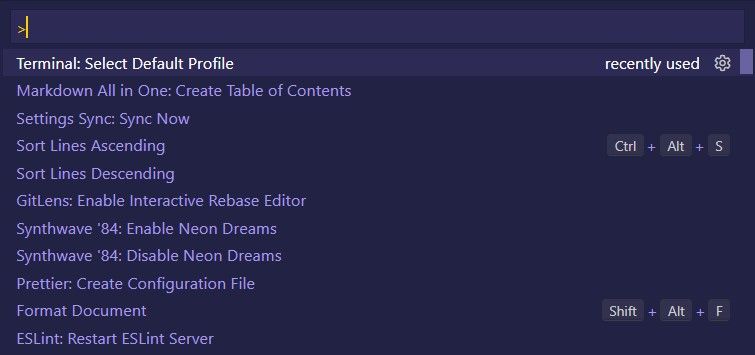
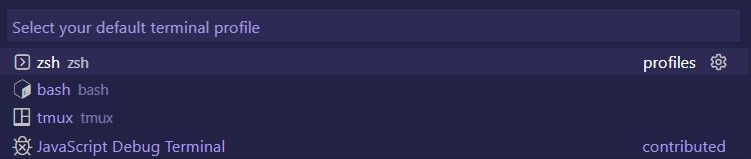
New terminals in this remote window now start zsh with your Oh My Zsh / fnm / pnpm setup.
ESLint, not Prettier
Vinicunca projects lint and format with @vinicunca/eslint-config. Do not install the Prettier extension; it fights ESLint Stylistic on save.
Install ESLint in the WSL window, then put this in the workspace .vscode/settings.json (or your WSL user settings.json):
{
  "prettier.enable": false,
  "editor.formatOnSave": false,
  "editor.codeActionsOnSave": {
    "source.fixAll.eslint": "explicit",
    "source.organizeImports": "never"
  }
}
The full eslint.rules.customizations and eslint.validate lists live on the ESLint getting started page — copy them so stylistic rules still auto-fix without noisy squiggles.
Recommended extensions
Install these in WSL (Extensions view → search → Install in WSL: Ubuntu, or code --install-extension <id> from an Ubuntu terminal while a WSL window is open):
| Extension | ID | Why |
|---|---|---|
| WSL | ms-vscode-remote.remote-wsl | Remote window (install on Windows) |
| ESLint | dbaeumer.vscode-eslint | Lint and format on save |
| Vue (Official) | Vue.volar | Vue 3 and .vue SFCs |
| UnoCSS | antfu.unocss | Class autocomplete and highlights |
| Error Lens | usernamehw.errorlens | Diagnostics inline |
| GitLens | eamodio.gitlens | Blame and history |
| EditorConfig | EditorConfig.EditorConfig | Honors .editorconfig |
code --install-extension dbaeumer.vscode-eslint
code --install-extension Vue.volar
code --install-extension antfu.unocss
code --install-extension usernamehw.errorlens
code --install-extension eamodio.gitlens
code --install-extension EditorConfig.EditorConfig
Skip Prettier, Live Server, Git History and leftover "extension packs". Vite / Nuxt already provide the dev server; GitLens covers history; ESLint covers formatting.