
Windows Terminal
Windows Terminal is Microsoft's modern terminal app. It gives you tabs, split panes, themes, a command palette and per-profile settings, and it automatically creates a profile for every WSL distribution and PowerShell version you install.
Install
Windows 11 ships with Windows Terminal and updates it through the Microsoft Store. On Windows 10, or if you removed it, install it with WinGet from PowerShell:
winget install --id Microsoft.WindowsTerminal -e
You can also get it from the Microsoft Store or the GitHub releases page. Builds from GitHub don't update automatically.
Make it the default terminal
Windows 11 version 22H2 and later already use Windows Terminal as the default terminal application. To check, or to set it on Windows 10:
Open the settings
Press Ctrl + ,, or select the ˅ dropdown next to the tabs and choose Settings.
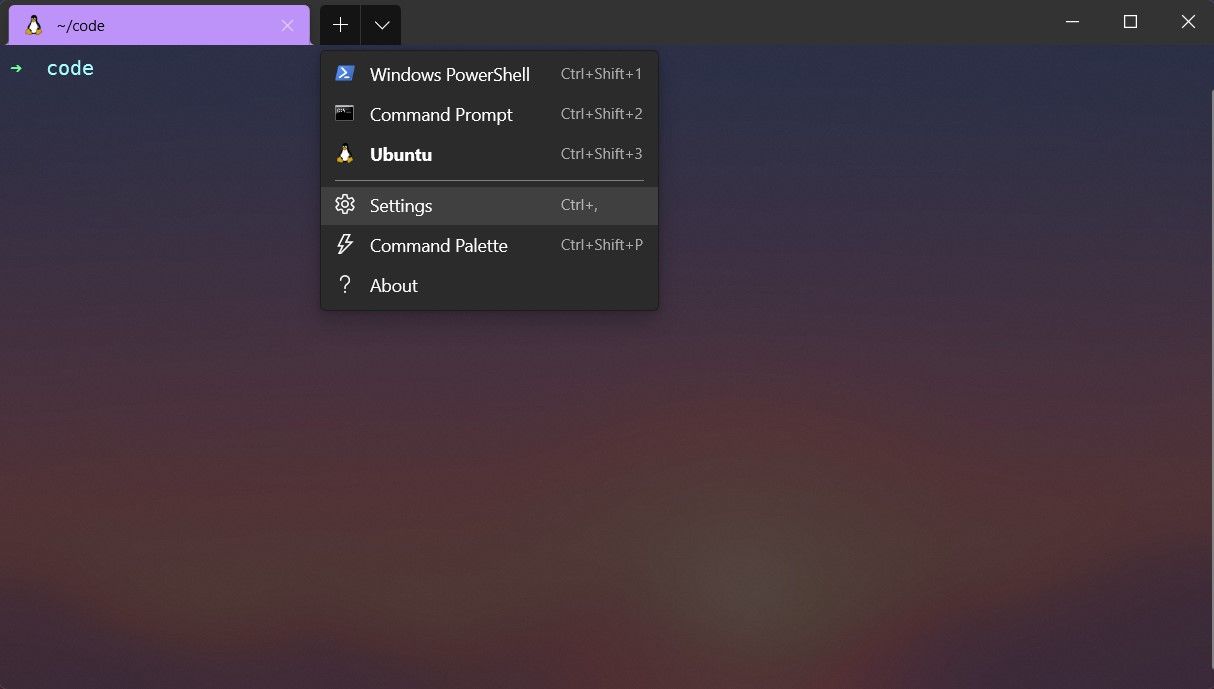
Pick Windows Terminal
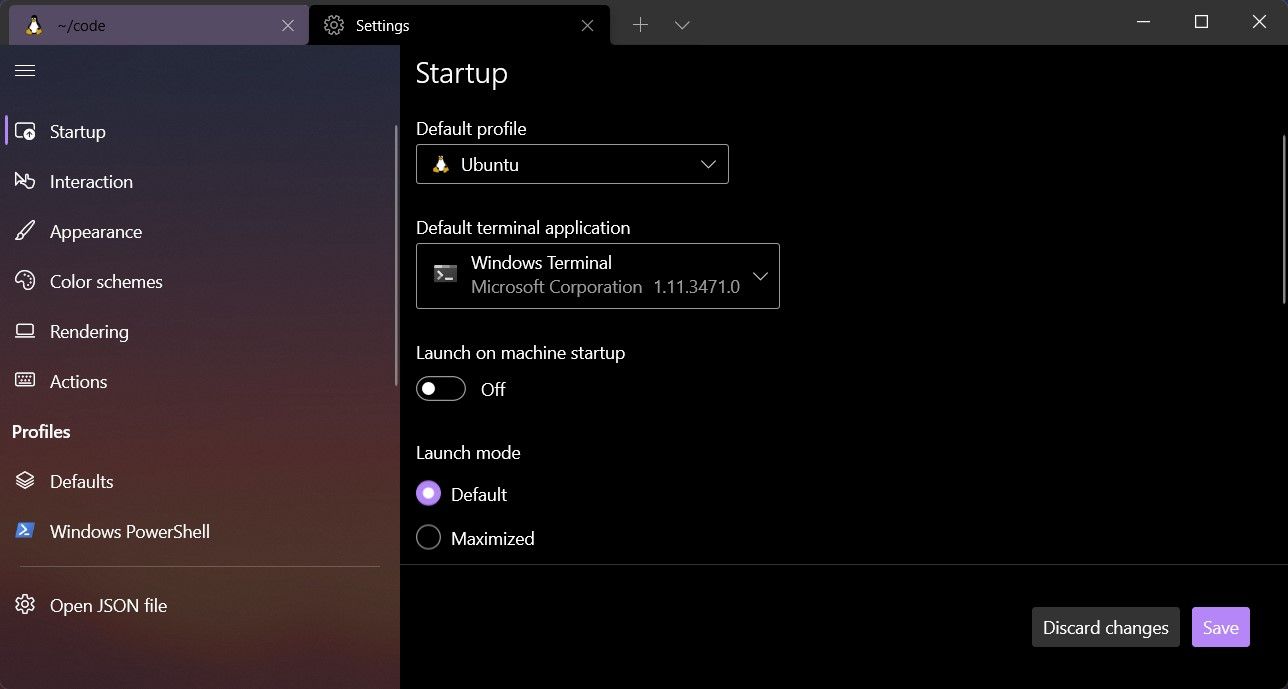
In Startup, set Default terminal application to Windows Terminal, then select Save.
From now on, anything that opens a console window, including PowerShell, Command Prompt and WSL, opens in Windows Terminal.
Open WSL by default
Set Ubuntu as the default profile
In Startup, set Default profile to Ubuntu.
Start in your Linux home directory
Open Profiles › Ubuntu › General and set Starting directory to ~.
If your Terminal version doesn't accept ~, leave the starting directory empty and change Command line instead:
wsl.exe -d Ubuntu --cd ~
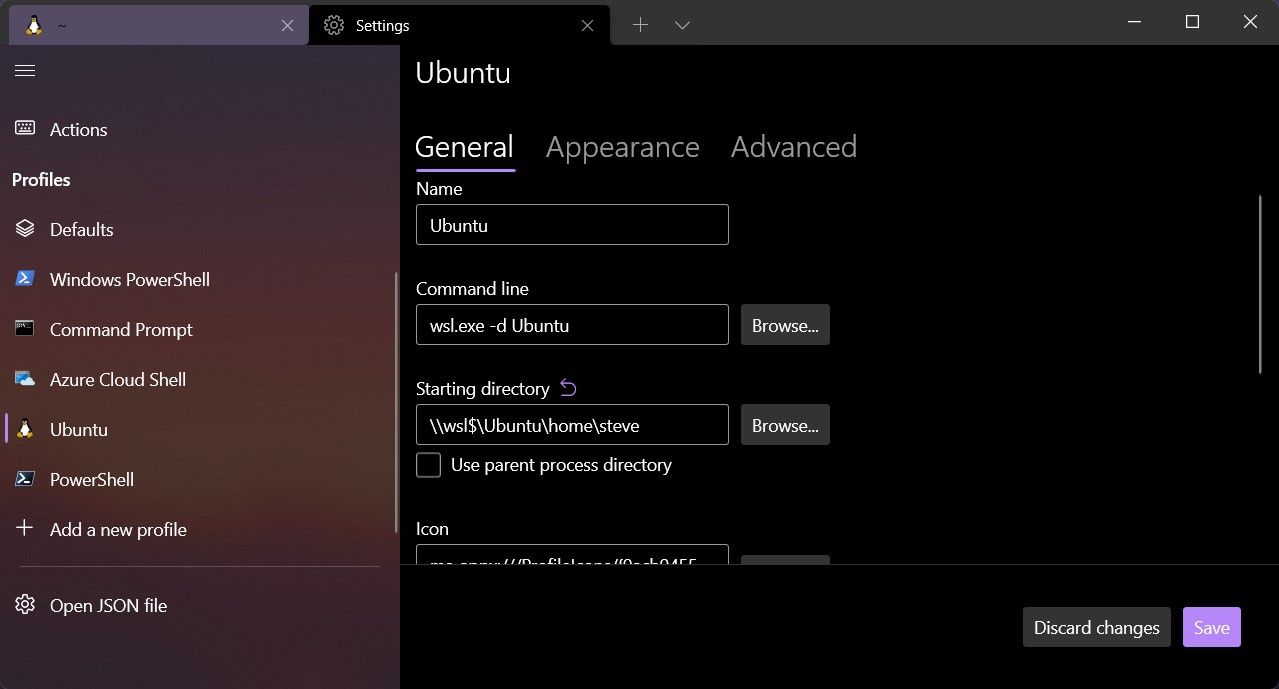
New tabs now open zsh (or bash, until you reach the zsh step) in /home/<your-user> instead of /mnt/c/Users/<you>.
Useful shortcuts
| Action | Shortcut |
|---|---|
| New tab with the default profile | Ctrl + Shift + T |
| Command palette | Ctrl + Shift + P |
| Split the current pane | Alt + Shift + D |
Open settings.json | Hold Shift while selecting Settings |
Everything in the settings UI is also stored in settings.json, so you can back it up or copy it to another machine. Color schemes, fonts and key bindings are covered in the Windows Terminal customization docs.