 Vinicunca
 Visual Studio Code
Installing VS Code
VS Code is available on Windows, macOS, and Linux. You can download the latest Windows installer here. I recommend using the stable build.
Changing the Default Shell
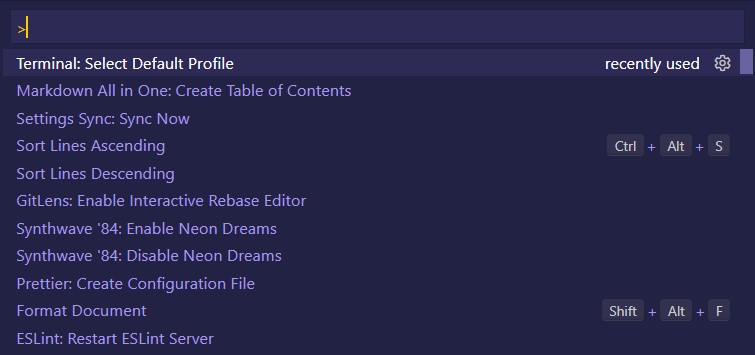
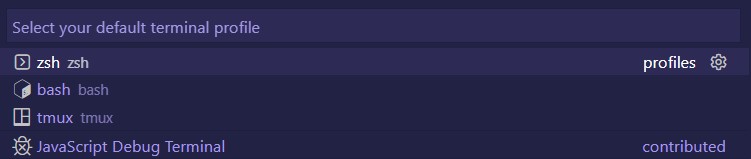
The WSL2 shell can be chosen as the default VS Code terminal by pressing Ctrl + Shift + P and typing/choosing Terminal: Select Default Profile, then selecting zsh:
Remote Extension
Install the Remote - WSL extension on VS Code.
This allows you to use WSL as your integrated development environment and will handle compatibility and pathing for you. Learn more.
This extension will also allow you to launch VS Code right from your WSL terminal by using the code command.
If I was inside the root directory of my repository, I would use code . to launch the entire directory inside VS Code.
cd my-project
code .
More Extensions
The number of extensions available for VS Code can be overwhelming, here are some of the ones I use the most.
- Live Server - Launch a local development server with live reload feature for static & dynamic pages.
- Live Share - Includes everything you need to start collaboratively editing and debugging in real-time.
- GitLens - Quickly glimpse into whom, why, and when a line or code block was changed.
- Git History - View git log, file history, compare branches or commits
- Prettier - Prettier is an opinionated code formatter.
- ESLint - Find and fix problems in your JavaScript code
- Color Highlight - This extension styles CSS/web colors found in your document.
- Markdown All in One - Markdown keyboard shortcuts, table of contents, auto preview, and more
- markdownlint - Markdown linting and style checking for Visual Studio Code
- GitHub Markdown Preview - Adds styling, markdown checkboxes, footnotes, emoji, and YAML preamble.
- Wakatime - Metrics, insights, and time tracking automatically generated from your programming activity.
- Dash - Dash, Zeal, and Velocity integration in Visual Studio Code
- Draw.io Integration - This unofficial extension integrates Draw.io (also known as diagrams.net) into VS Code.
- Docker - Makes it easy to create, manage, and debug containerized applications.
- Python - IntelliSense, Linting, Debugging, Jupyter Notebooks, refactoring, unit tests, and more.
- VetsWhoCode Extension Pack - Extension Pack for new veterans learning javascript at #VetsWhoCode
Note:
You will need to install any VS Code extensions for your Remote - WSL. Extensions already installed locally on VS Code will not automatically be available. Learn more.