 Vinicunca
 Windows Terminal
To launch a Linux terminal we currently need to use the Ubuntu icon from the Start menu or enter the wsl or bash commands into PowerShell/Command Prompt. Another option that will give us more features like tabs, split views, themes, transparency, and key bindings, is to use the Windows Terminal. There are also a few other terminals like Cmder, ConEmu, or Hyper, but in my experience, Windows Terminal works extremely well.
Installing Windows Terminal
Windows 11 comes with Windows Terminal by default, but If you are using Windows 10, Download and install Windows Terminal through the Microsoft Store.
Terminal Settings
A couple of quick things I recommend setting up are the default profile and your starting home directory. These settings make it so launching Windows Terminal will open directly into WSL inside our user's home directory.
Default Profile
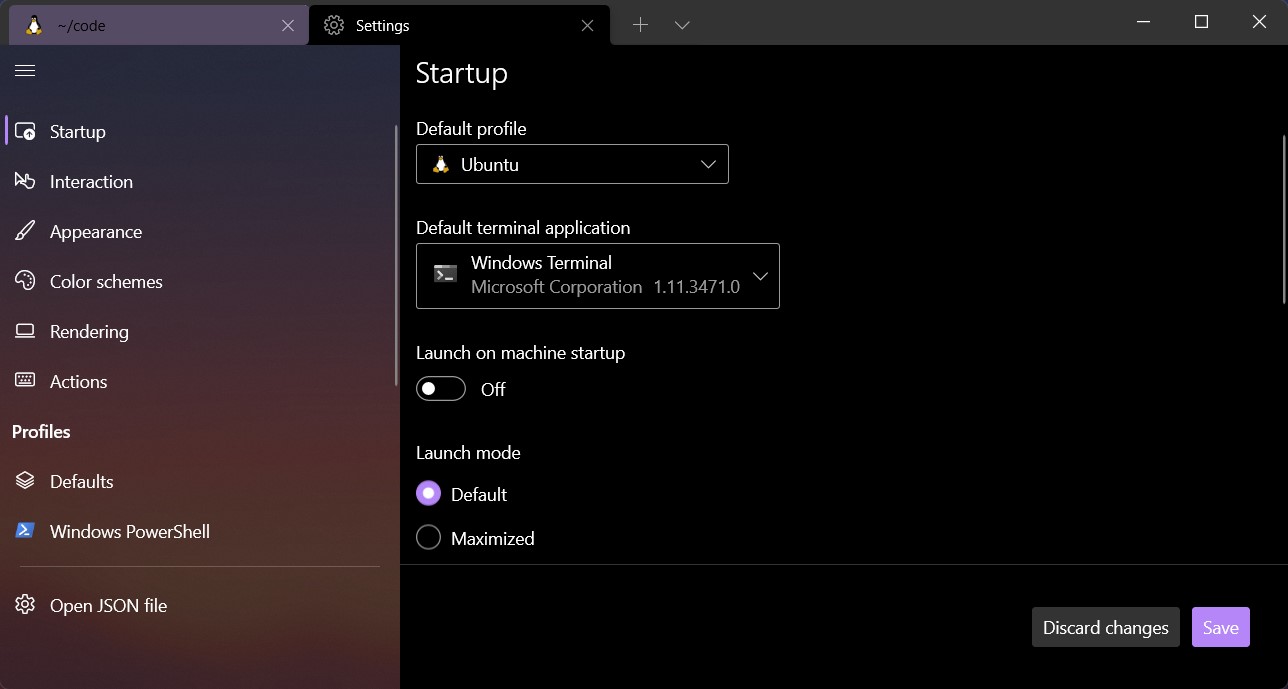
Windows Terminal will open a PowerShell or Command Prompt shell when launched by default, here is how to switch it to WSL:
- Select the
˅icon from Windows Terminal and go to the Settings menu:
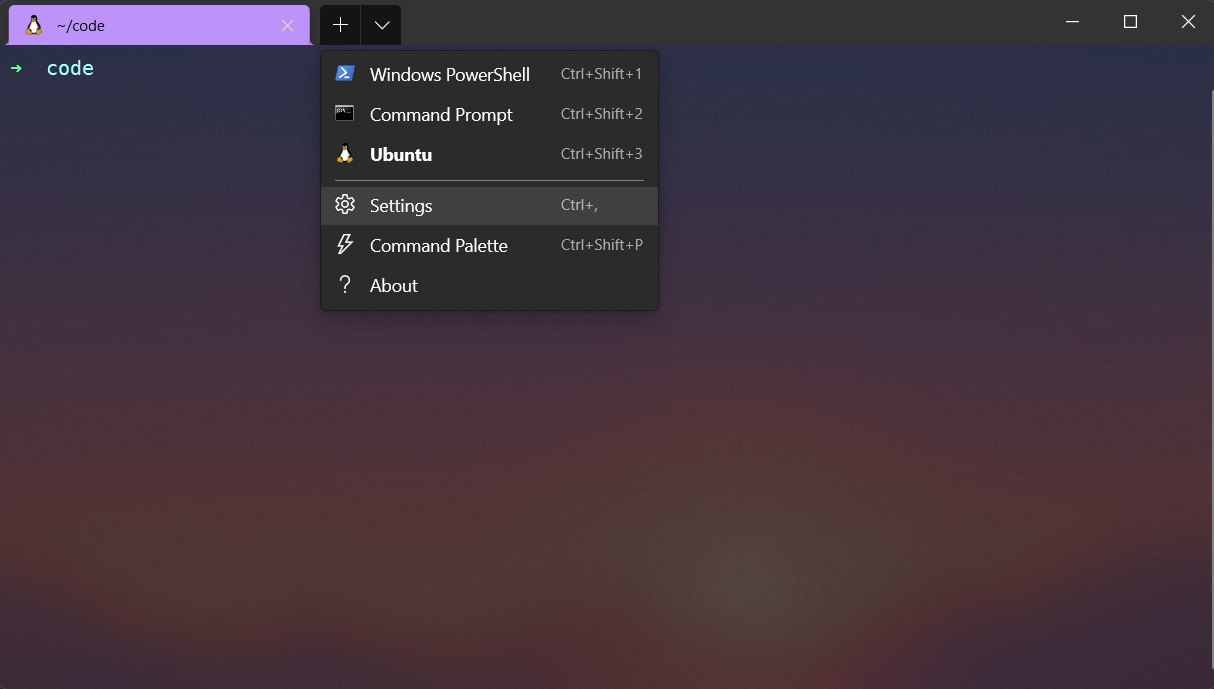
- In the Startup section you will find the Default profile dropdown, select Ubuntu. Below it, select Windows Terminal as the Default terminal application:
Starting Directory
A default Ubuntu terminal will open to the root directory. To make finding your files a little quicker we can have it open into your home directory instead.
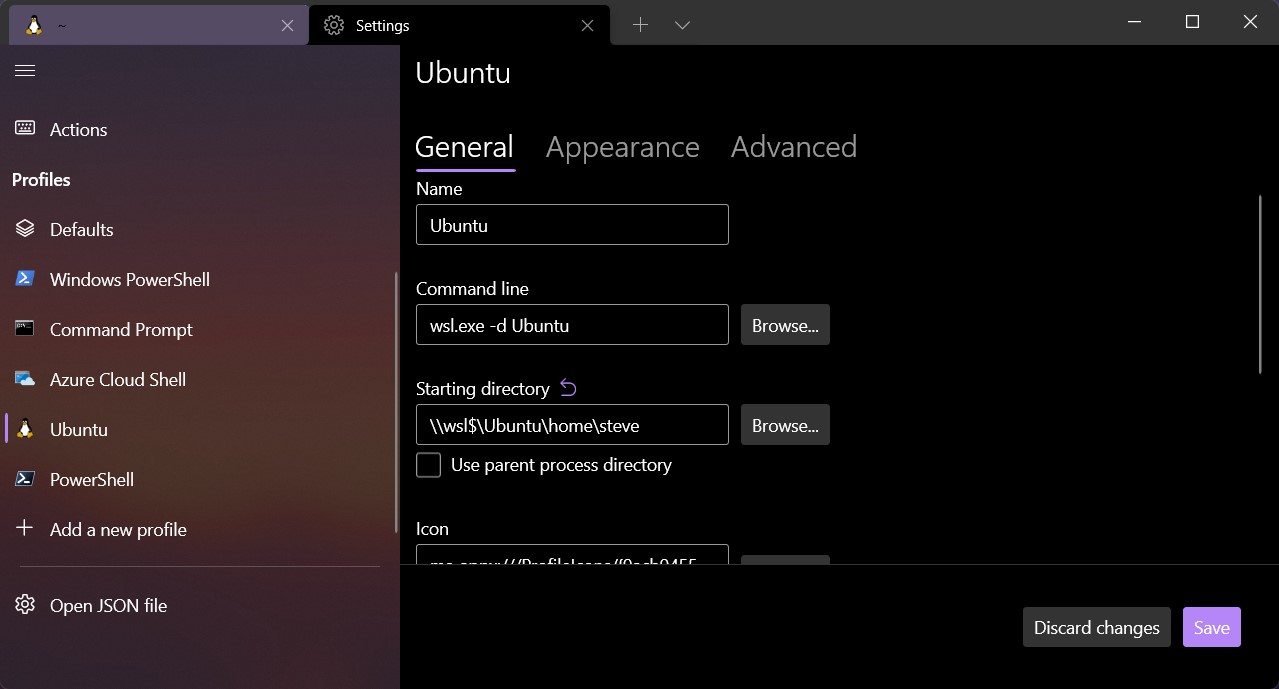
- Under the Profiles section in the settings menu click on Ubuntu
- At the General tab, you will find a Starting directory input
- Enter the following replacing "username" with your Ubuntu user name:
\\wsl$\Ubuntu\home\username - You can leave the
Use parent process directorybox unchecked - If it is still opening into your
/directory, change theCommand linesetting located right above theStarting directoryinput box to the following:wsl.exe -d Ubuntu
There are many more settings to explore, and there is also a JSON file you can edit for more advanced customizations.
Check out this guide for some popular Windows Terminal themes and how to install them.