 Vinicunca
 Git Config
sudo apt install git
Name
To set up your Git config file, open a WSL command line and set your name with this command (replacing "Your Name" with your preferred username):
git config --global user.name "Your Name"
Set your email with this command (replacing "[email protected]" with the email you prefer):
git config --global user.email "[email protected]"
Username
And finally, add your GitHub username to link it to git (case sensitive!):
git config --global user.username "GitHub username"
Make sure you are inputting user.username and not user.name otherwise you will overwrite your name and you will not be correctly synced to your GitHub account.
You can double-check any of your settings by typing git config --global user.name and so on. To make any changes just type the necessary command again as in the examples above.
Git Credential Manager
Once you enter in your token the first time, it can be stored via Git Credential Manager (GCM) so you won't have to authenticate yourself each time.
You can have Git installed in WSL and also in Windows at the same time. Git for Windows includes GCM and is the preferred way to install it.
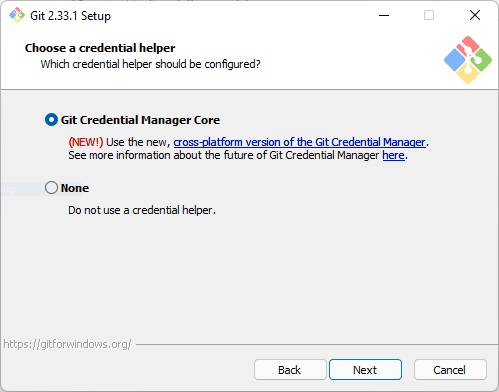
You can also download the latest installer for Windows to install the GCM standalone version.
Storing Your Token
Once Git Credential Manager is installed you can set it up for use with WSL. Open your WSL terminal and enter this command:
git config --global credential.helper "/mnt/c/Program\ Files/Git/mingw64/libexec/git-core/git-credential-manager-core.exe"
Note:
If you ever receive the following error message:
/mnt/c/Program\ Files/Git/mingw64/libexec/git-core/git-credential-manager-core.exe store: 1:
/mnt/c/Program Files/Git/mingw64/libexec/git-core/git-credential-manager-core.exe: not found
Try using the this command:
git config --global credential.helper store