 Vinicunca
 Chocolatey
Chocolatey is a command-line package manager like homebrew or APT, but for Windows.
Admin Shell
Before we start the installation process, I want to cover launching an administrative shell from windows. There are a few ways to do this:
Option 1
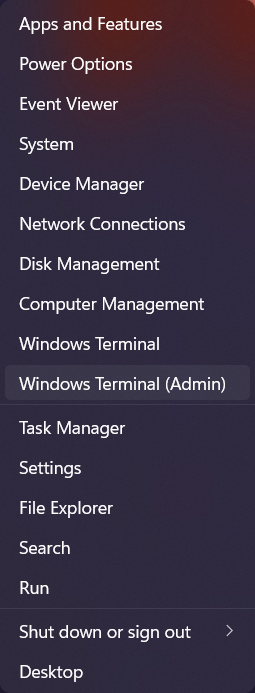
Right-click on the Windows start menu and select Windows Terminal (Admin):
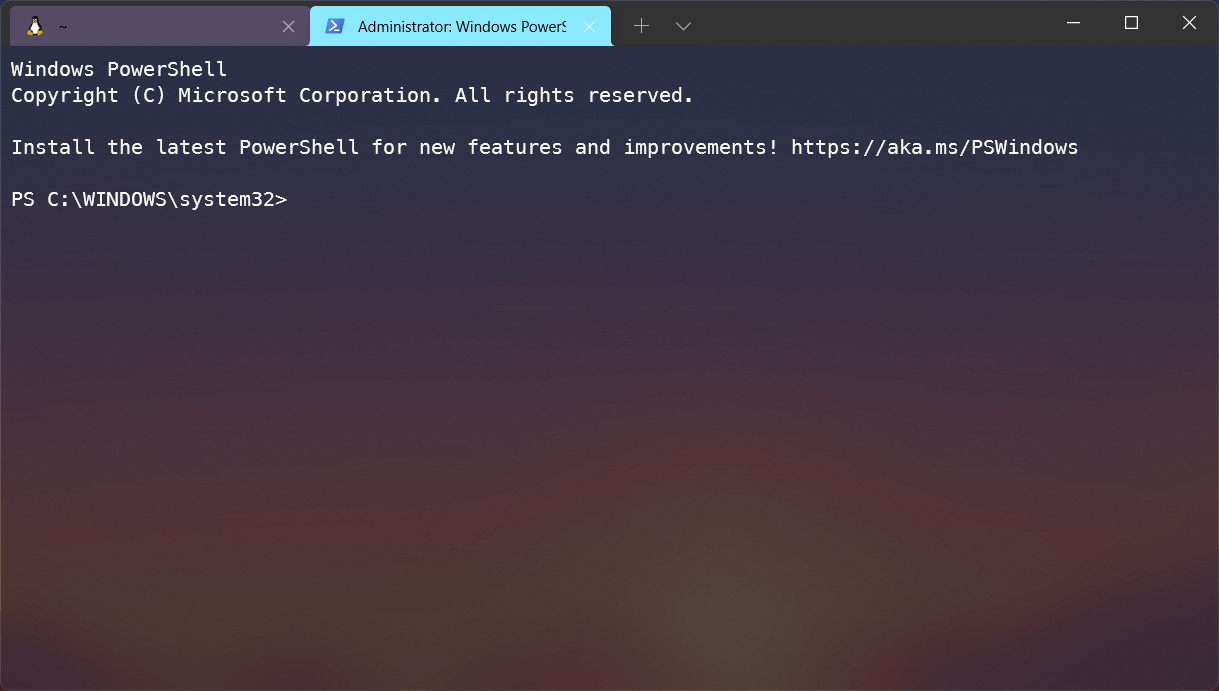
Once your terminal loads, click the ˅ icon and open a new PowerShell tab. It should say Administrator: Windows PowerShell in the new tab:
Option 2
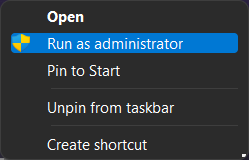
If you have Windows Terminal on your taskbar, Shift + Right-Click on the icon and select run as administrator, and then open a new PowerShell tab:
Option 3
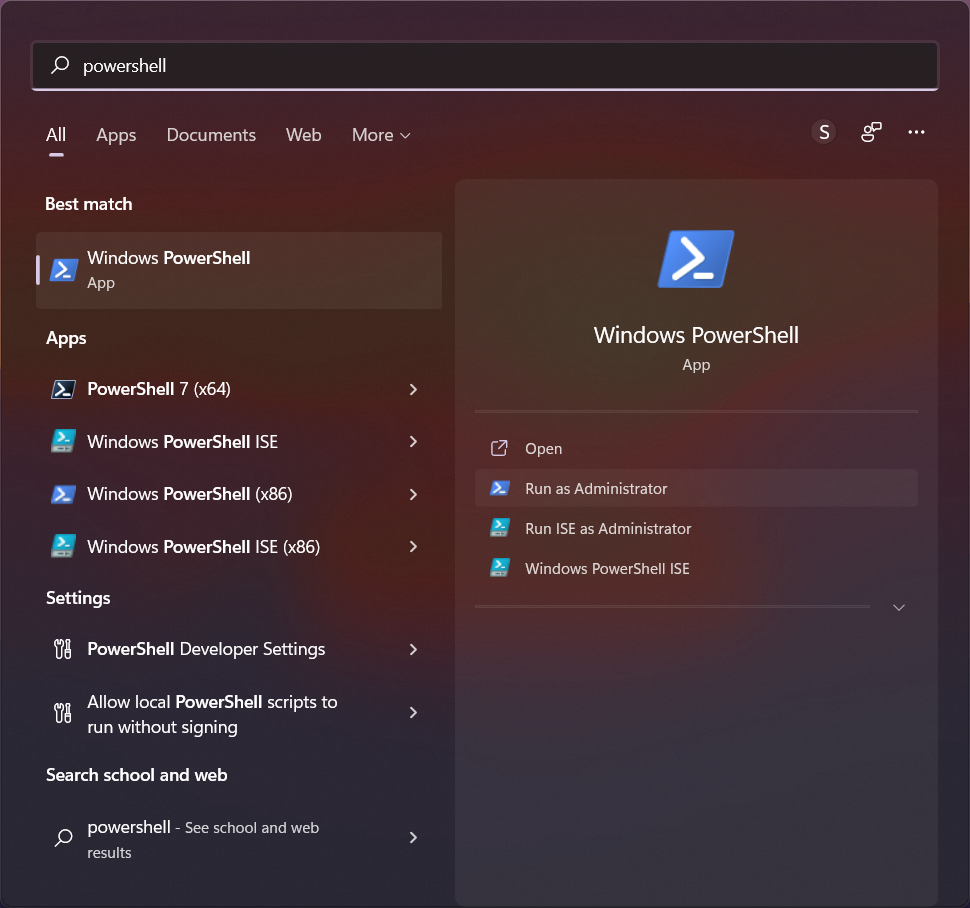
Use the search bar from the Start menu and type in powershell. A link to Run as Administrator will display:
Option 4
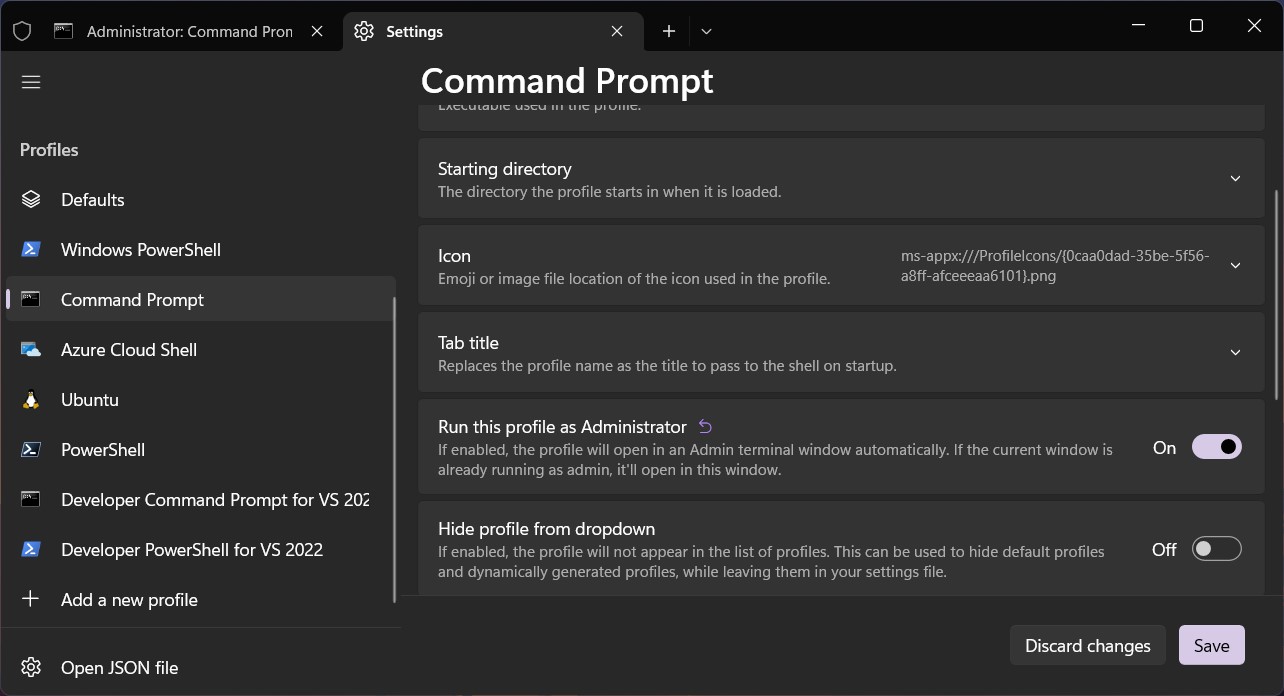
Windows Terminal added a new feature where you can launch a PowerShell/Command Prompt profile in an Admin terminal automatically. In the Windows Terminal settings, scroll down to your desired profile and then toggle the Run this profile as Administrator switch. Now you can skip all the steps above, and the terminal will always launch as admin.
Installing Chocolatey
- Open an administrative PowerShell terminal
- Run the following command:
Get-ExecutionPolicy
- If it returns
Restricted, then run one of the following commands:
Set-ExecutionPolicy AllSigned
or
Set-ExecutionPolicy Bypass -Scope Process
With PowerShell, you must ensure
Get-ExecutionPolicyis not Restricted. We suggest usingBypassto bypass the policy to get things installed orAllSignedfor quite a bit more security.
- Finally, run the following command:
Set-ExecutionPolicy Bypass -Scope Process -Force; [System.Net.ServicePointManager]::SecurityProtocol = [System.Net.ServicePointManager]::SecurityProtocol -bor 3072; iex ((New-Object System.Net.WebClient).DownloadString('https://community.chocolatey.org/install.ps1'))
If you don't see any errors, you are ready to use Chocolatey! Type choco or choco -? now, or see Getting Started for usage instructions.
Basic Chocolatey Commands
We use the choco command to run chocolatey. (Remember, you must use an administrative shell for it to work.)
Install a new package:
choco install filename
Remove a package:
choco uninstall filename
List all of the installed packages:
choco list
Update:
choco upgrade filename
or to update everything at once:
choco upgrade all
Windows Apps
Search for available apps on the Community Package Repository.
Here are a few of my favorite (free) apps for productivity and development on Windows:
- Wox - A full-featured launcher
- RunJs - JavaScript and TypeScript playground
- Responsively - A modified web browser that helps in responsive web development.
- Zeal - the Windows version of Dash
- Figma - A collaborative UI design tool
- draw.io - Flowchart maker and diagram software
- GitHub Desktop - A GUI for Git
- Postman - API tools
- Notion - Project management and note-taking software
- Obsidian - A note-taking app using markdown
- Microsoft PowerToys - A set of utilities for power users
You can download all these at once with the following command using chocolatey in an admin shell:
choco install wox runjs responsively zeal figma drawio github-desktop postman notion powertoys obsidian -y